 BM Digital Craft
 DigitalCraft AI Content Generator PRO for WooCommerce
This page walks through everything the plugin does: connecting an AI provider through WordPress's own built-in AI Client, generating and applying content for a single product, bulk-filling a whole catalog, and troubleshooting when something goes wrong.
Getting API keys
You only need a key from the provider(s) you actually plan to use — one for text (descriptions and category/tag suggestions), one for images, or the same provider for both. Each is a separate account with that company, billed by them directly; this plugin never sees, stores, or transmits that key at all — it's entered into a separate "Connector" plugin instead (see below), not into this plugin.
OpenAI
Create a key at platform.openai.com/api-keys (requires a funded/billed OpenAI account). Supports both text and image generation.
Google Gemini
Create a key at aistudio.google.com/apikey (Google AI Studio). Supports both text and image generation.
Anthropic Claude
Create a key at platform.anthropic.com. Text only — Anthropic has no image generation API, so it never appears as an Image provider option.
Connecting an AI provider
This plugin generates content through WordPress's own built-in AI Client (requires WordPress 7.0 or newer) rather than storing an API key itself. That means the actual provider connection — OpenAI, Google Gemini, Anthropic Claude, or any other AI Client-compatible provider — is set up once, site-wide, and can then be reused by any plugin that supports it, not just this one.
- Install a "Connector" plugin for the AI provider you want to use (e.g. an OpenAI, Google, or Anthropic connector) and activate it, same as any other plugin.
- Go to Settings > Connectors and enter that provider's API key there. This screen belongs to WordPress core, not this plugin — the key is stored and managed entirely by the Connector plugin.
- Repeat for a second provider if you want to use different providers for text vs. image generation.
This plugin never sees, stores, or transmits that API key — the Connector plugin makes the actual request to the provider entirely on its own.
Choosing providers in this plugin
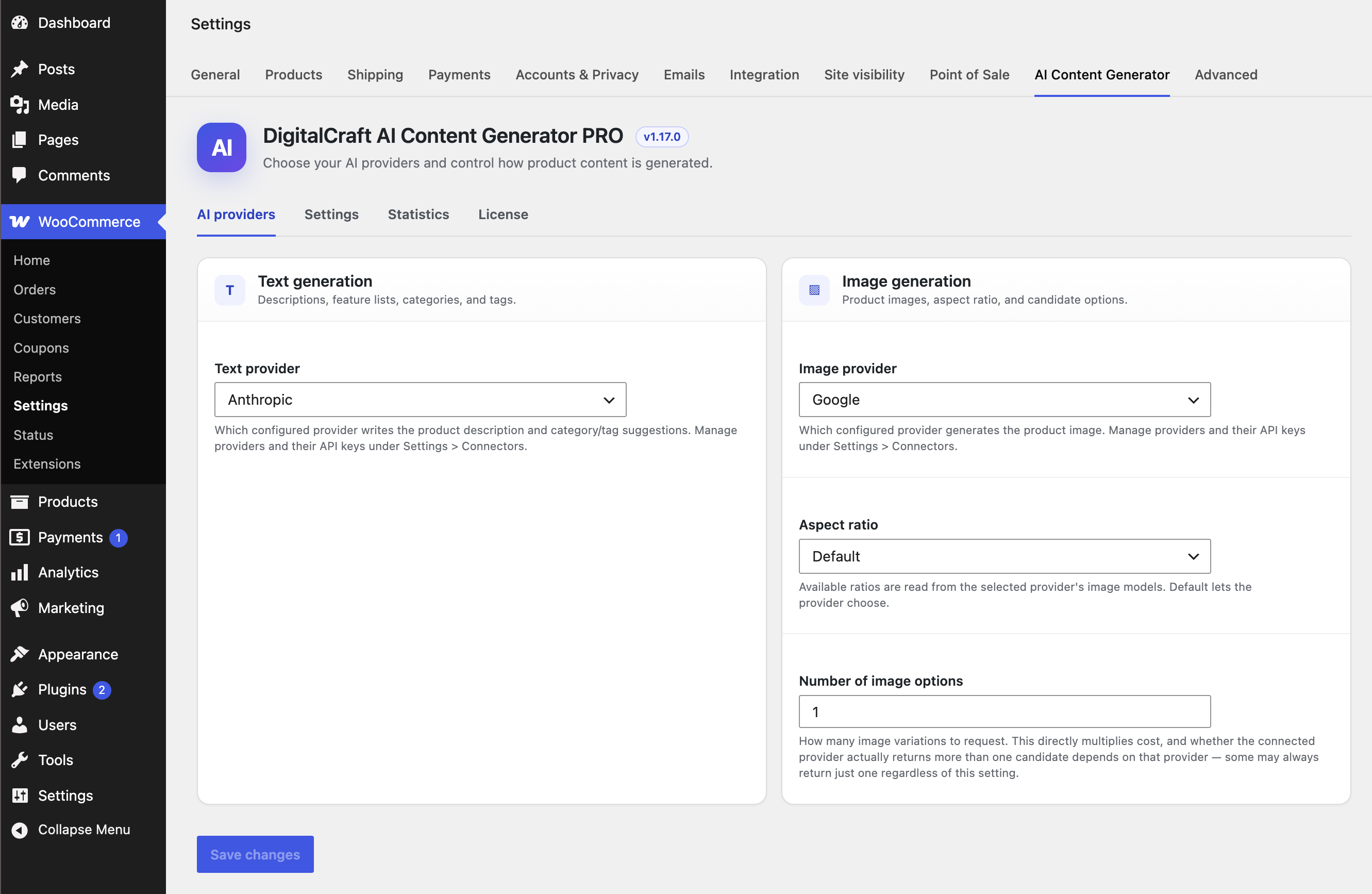
Once at least one provider is connected (see above), go to WooCommerce > Settings > AI Content Generator. The "AI providers" tab lists whichever connected providers actually support text or image generation, in two separate dropdowns.
Text generation (description + category/tag suggestions)
- Pick a Text provider from the dropdown. If it's empty, no connected provider currently offers text generation — go back and connect one first.
- Click Save Changes at the bottom of the page.
Which exact model that provider uses isn't something this plugin controls — it's decided by the Connector plugin (or WordPress itself), not typed in here.
Image generation
Only needed if you plan to generate product photos. Skip this section entirely if you only want descriptions and/or category suggestions.
- Pick an Image provider from the dropdown, same as for text.
- Optionally set an Aspect ratio (e.g.
16:9,1:1) — this is a preference, not a guarantee; the connected provider's model may not honor it. - Optionally set Number of image options (1–8) — how many variations to request per click, so you can pick the best one. This directly multiplies API cost, and whether the connected provider actually returns more than one candidate depends on that provider.
Other settings
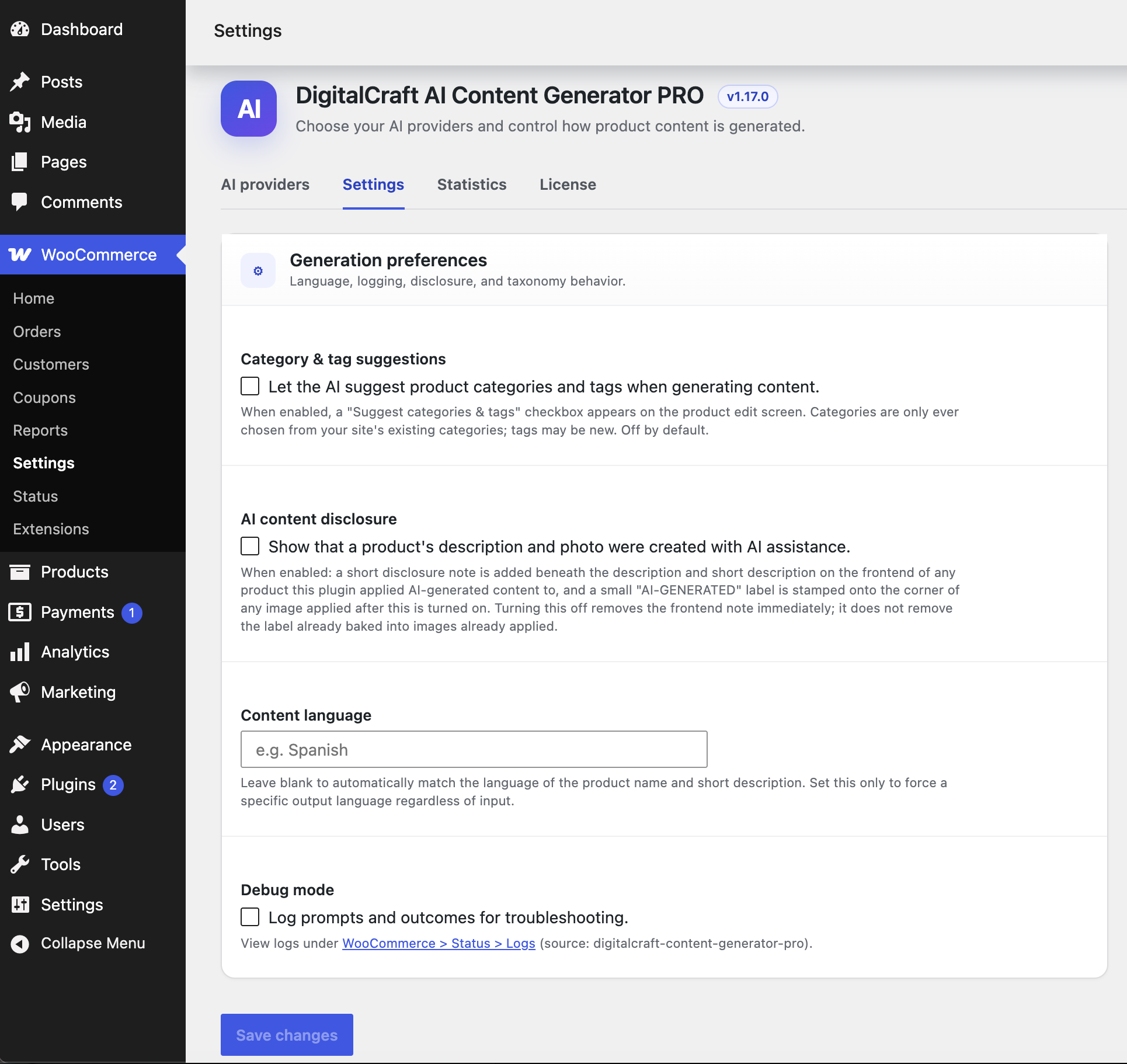
On the "Settings" tab of the same page:
- Content language — leave blank to automatically match the language of the product's existing name/description; set it (e.g. "Spanish") to force a specific output language regardless of input.
- Debug mode — logs every AI provider request and response to WooCommerce > Status > Logs, with API keys and image data redacted. Turn this on when troubleshooting a failed or odd-looking generation.
- AI content disclosure — see the dedicated section below.
- Category & tag suggestions — off by default. Turn this on to reveal a "Suggest categories & tags" checkbox on the product edit screen, and to have bulk-fill suggest and apply categories/tags automatically for every product it generates content for.
Generating content for one product
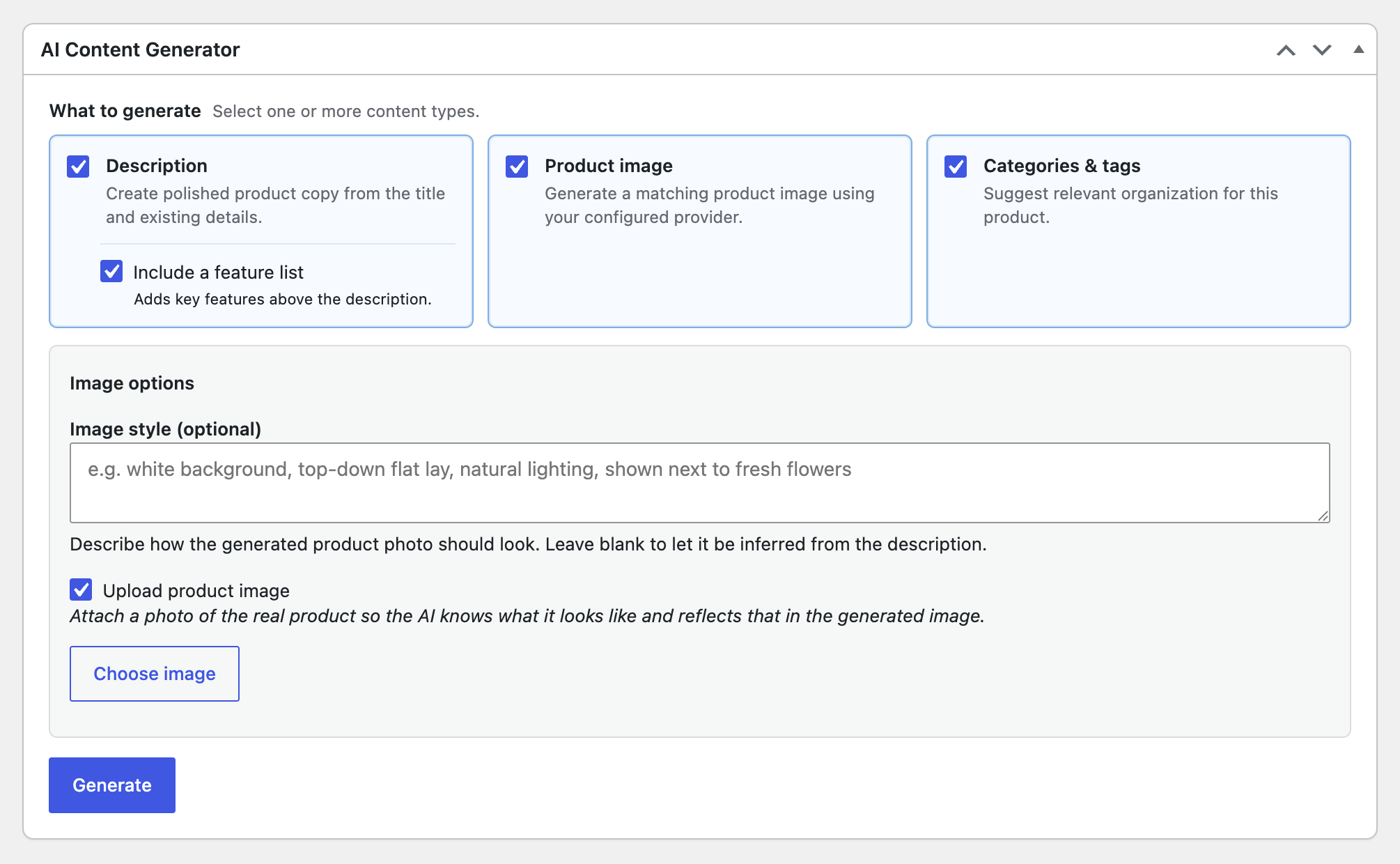
Open any product (new or existing) and find the AI Content Generator box near the top of the edit screen.
Step 1 — choose what to generate
- Generate description — always uses the product's current "Description" field content as source material (even if not saved yet).
- Include a feature list (appears once Generate description is checked) — adds a short bullet list of 3-5 key features or selling points after an opening paragraph, using only facts already given.
- Generate image — reveals an Image style field (e.g. "white background, top-down flat lay, natural lighting"). Leave it blank and the photo defaults to a staged, luxury/upscale environment.
- Upload product image (under Generate image) — opens WordPress's native media library so you can pick a real photo of the product as a visual reference.
- Suggest categories & tags — only shown if enabled on the Settings tab. Suggests a few relevant categories (reusing an existing one when it fits, or proposing a new one) and several tags.
Step 2 — review the results
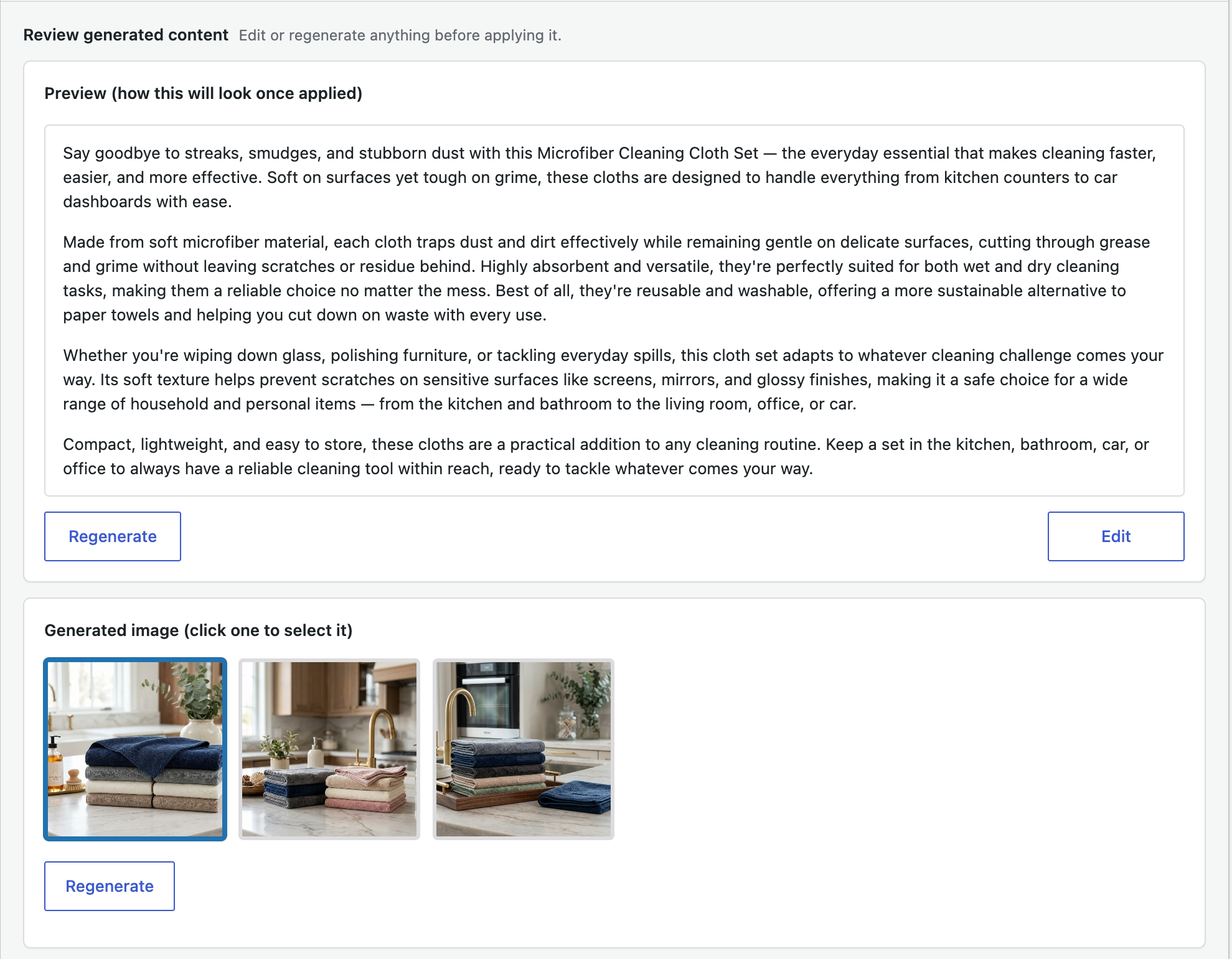
- The generated description appears in an editable box with a live preview underneath (click Edit to reveal the raw HTML). Any existing technical or regulatory information (INCI names, CAS numbers, compliance limits, allergen percentages, storage instructions) is reproduced exactly, in its own clearly separated section — never paraphrased or dropped.
- If you generated a description without an image, you're offered a one-click option afterward to also generate a matching image from it.
- Generated images appear as clickable thumbnails — click one to select it, or click Regenerate for a fresh batch of candidates.
- Suggested categories and tags appear as checkable "chip" pills, all checked by default — uncheck any you don't want before applying.
Step 3 — apply
Check Update description, Update image, and/or Update categories/tags, then click Apply to product. Only the checked items are written to the product — generating something doesn't commit it on its own. Applying the description also updates the product's short description automatically, using the first paragraph.
Bulk-filling many products at once
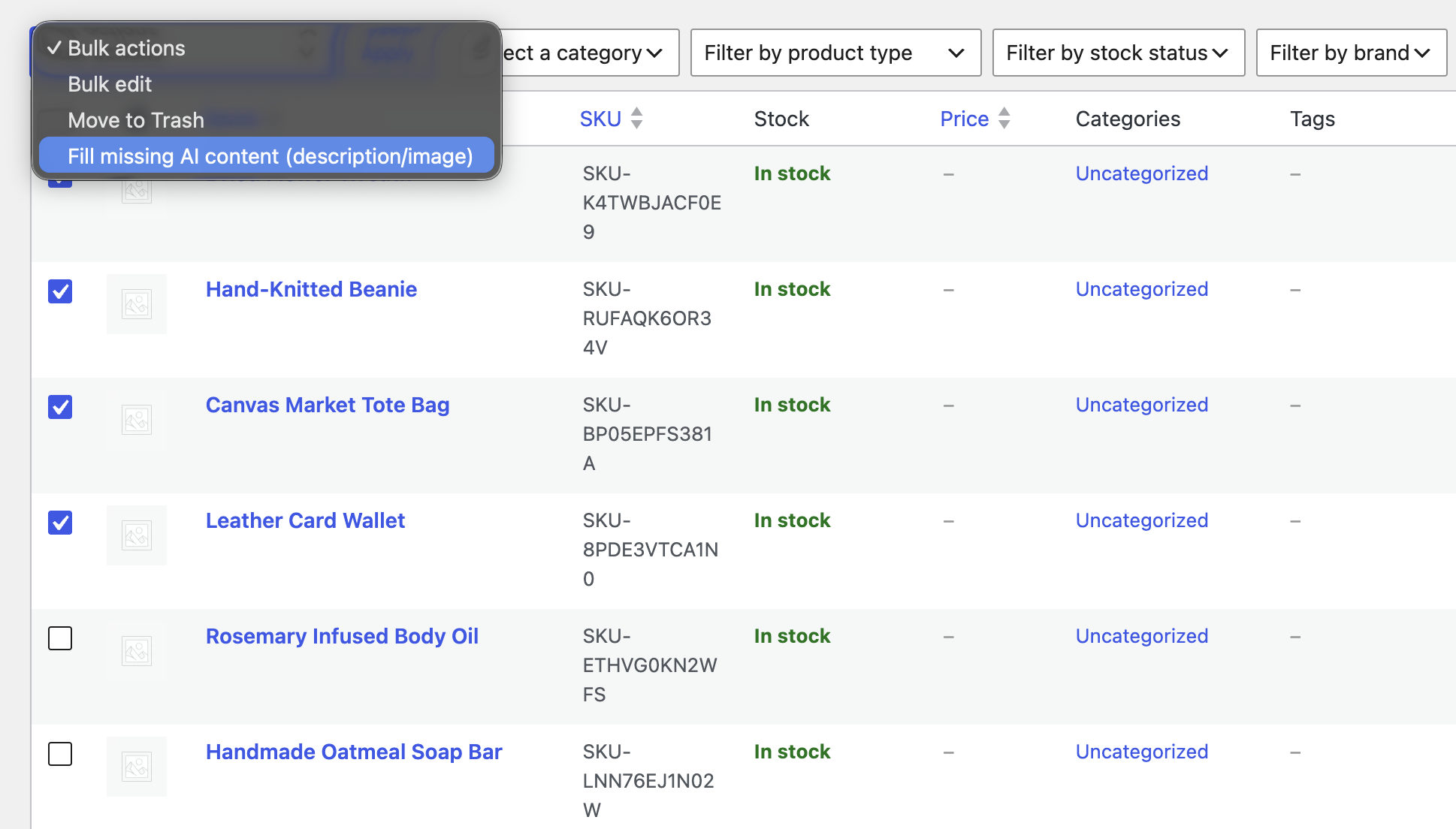
For catalogs with several products missing a description or photo, go to Products, select the ones you want (or all of them), choose "Fill missing AI content (description/image)" from the Bulk actions dropdown, and click Apply.
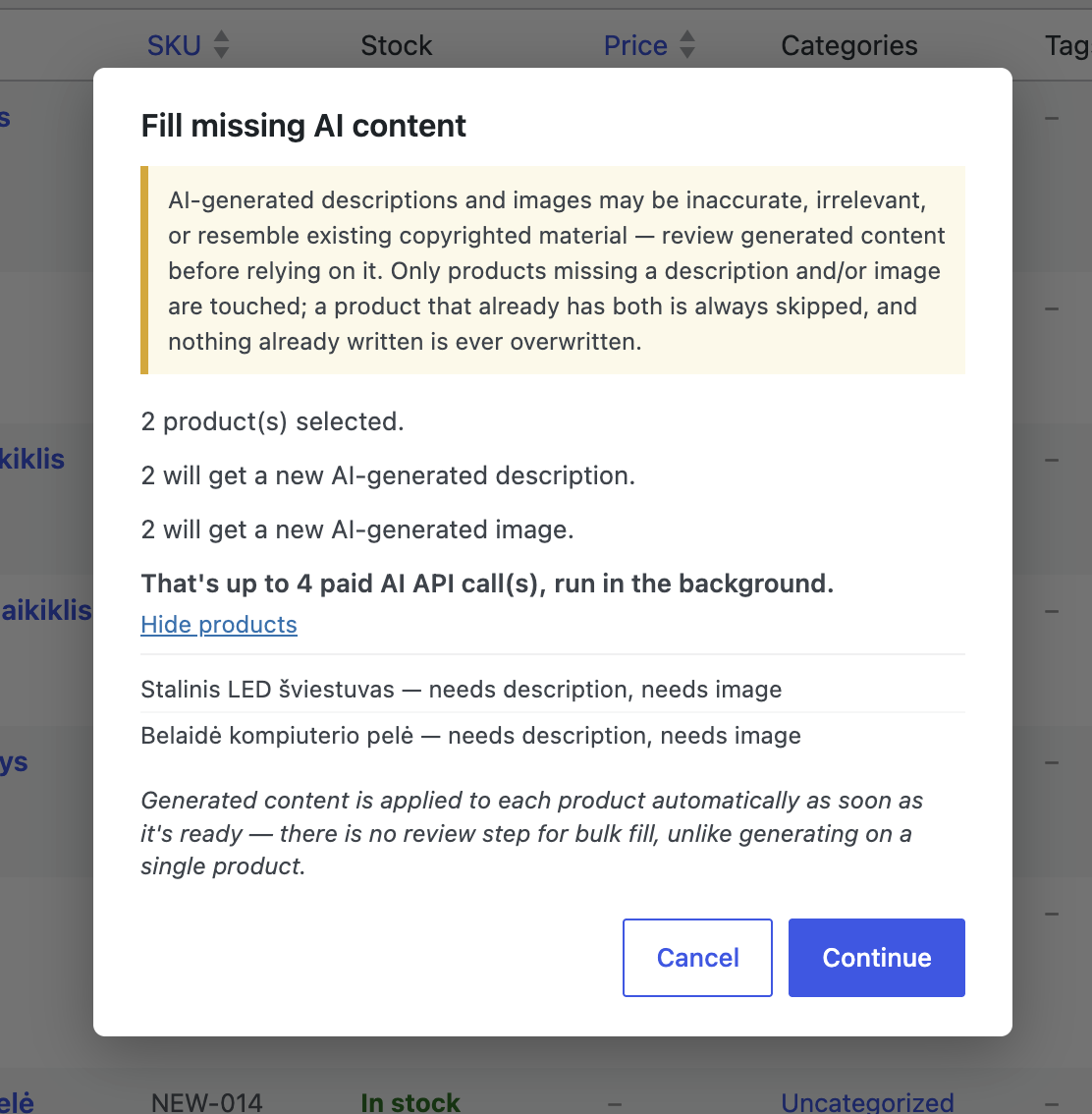
- A confirmation dialog first shows how many products already have both (skipped), how many need a description, how many need an image, and roughly how many paid AI calls that adds up to. Click "Show products" for the exact per-product breakdown.
- Only genuinely missing content is filled in — existing hand-written content is never overwritten.
- Each product is queued and processed in the background, spaced 20 seconds apart to avoid rate limits — you don't need to keep the browser tab open.
- Since nobody reviews each result individually, generated content is applied to each product automatically as soon as it's ready — there is no review step for bulk-fill, unlike generating on a single product.
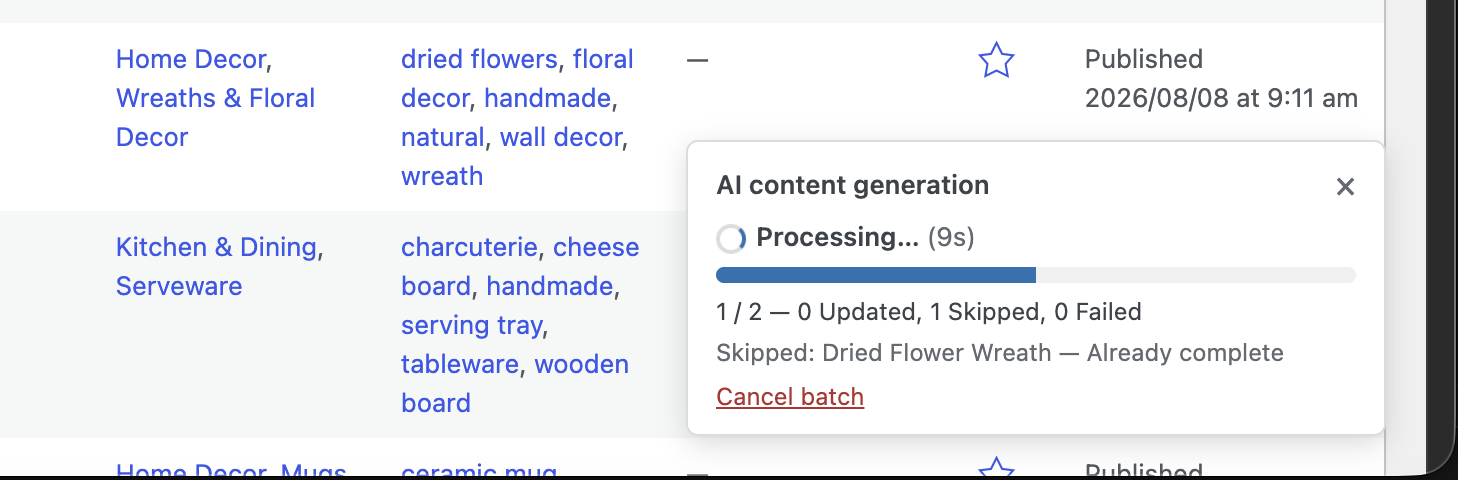
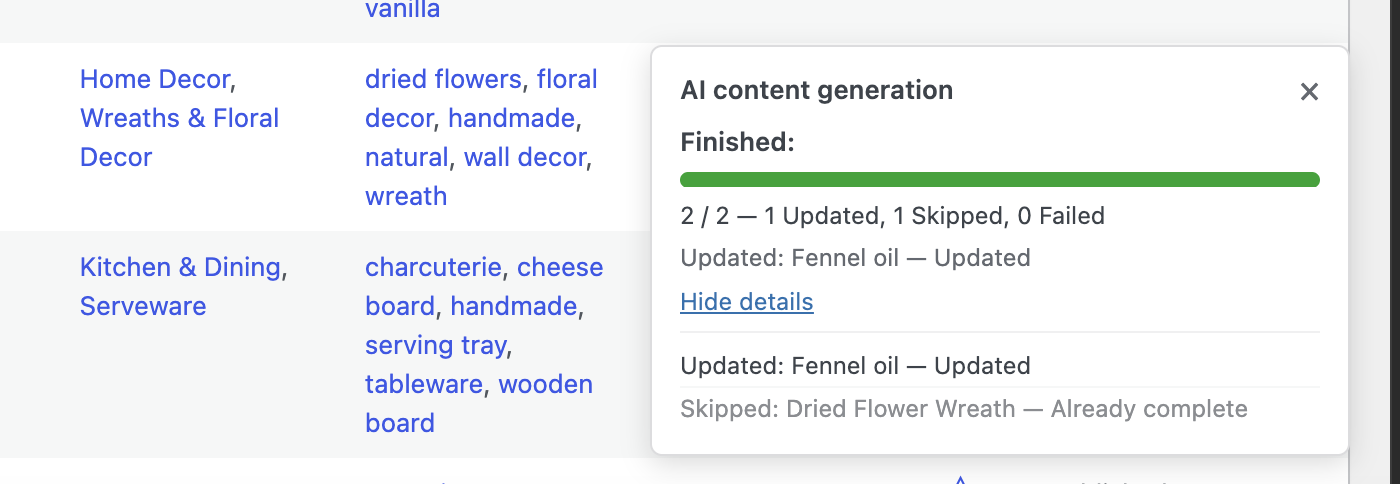
- A progress toast in the bottom-right corner shows a live count while the batch runs, and stays visible with the final summary once finished.
- "Cancel batch" stops anything not yet started; "Retry failed" re-queues just the products that failed.
- If Category & tag suggestions is enabled in Settings, every product that gets a description and/or image in the batch also has categories/tags suggested and applied automatically.
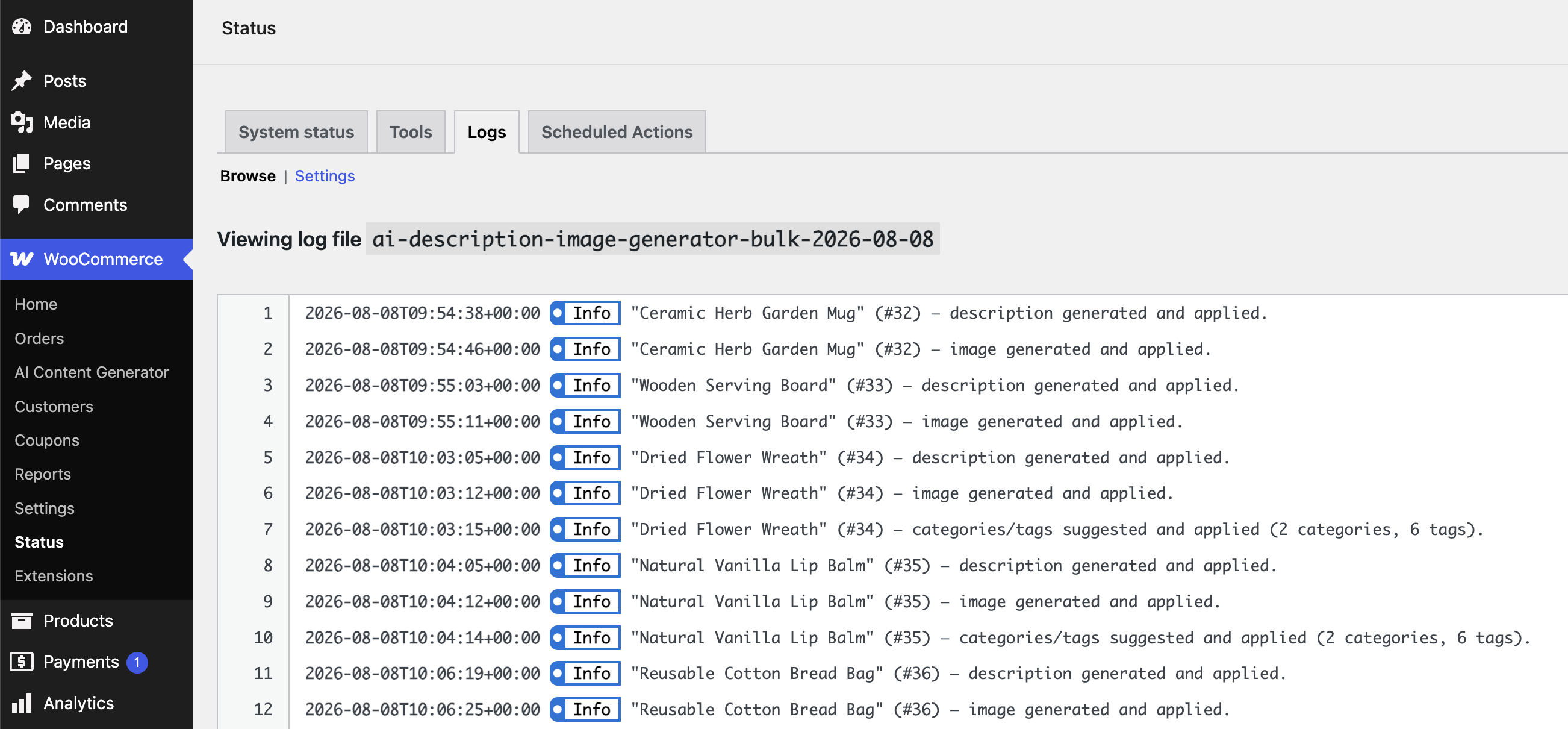
The result when product batch generation is completed:
Usage statistics
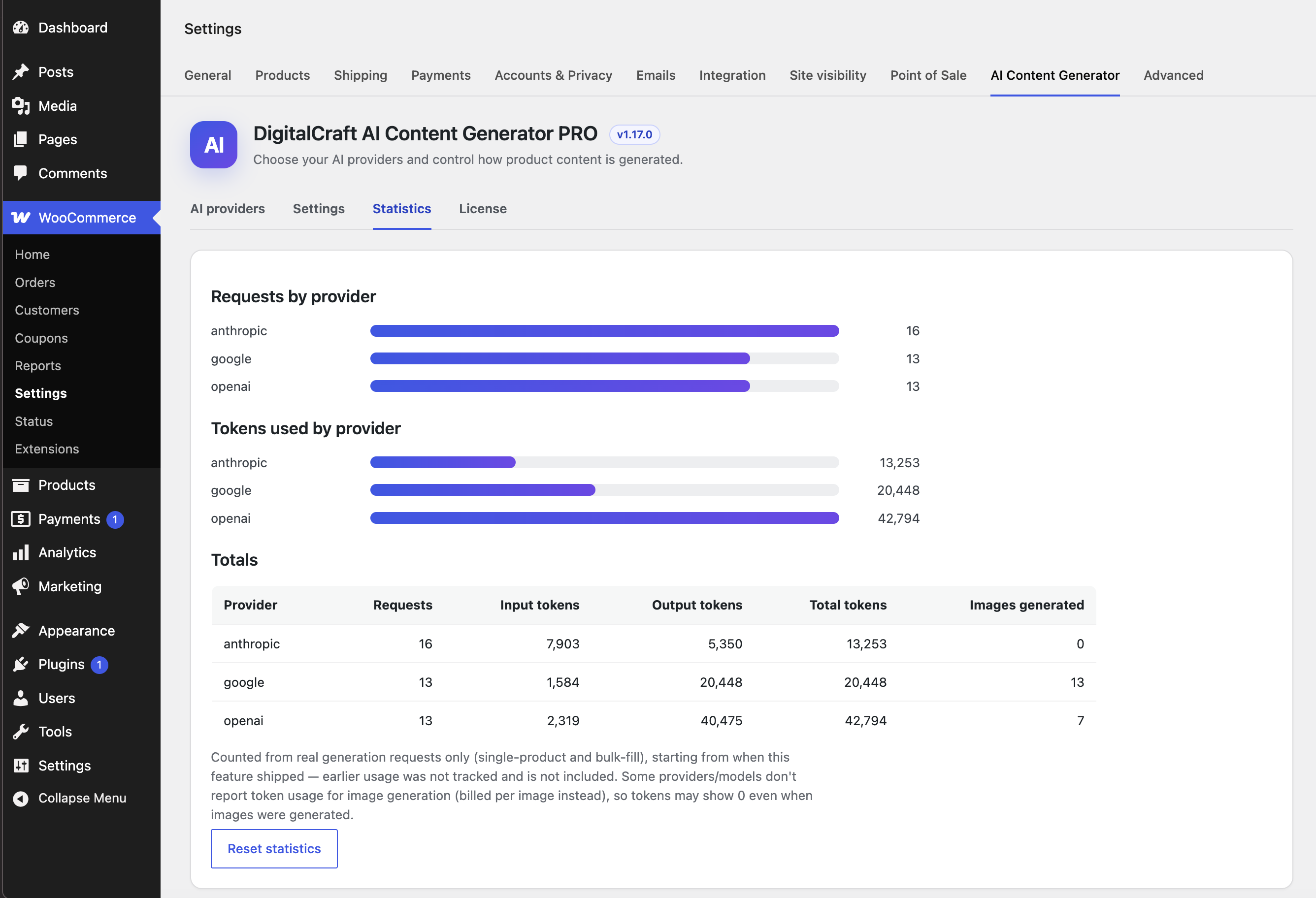
The "Statistics" tab tracks real AI provider usage from every generation request (single-product and bulk-fill): request counts, input/output/total tokens, and images generated, broken down by provider with simple bar charts and a totals table. Only counts from when this feature shipped onward. A "Reset statistics" button clears the log (with a confirmation, since it can't be undone).
AI content disclosure
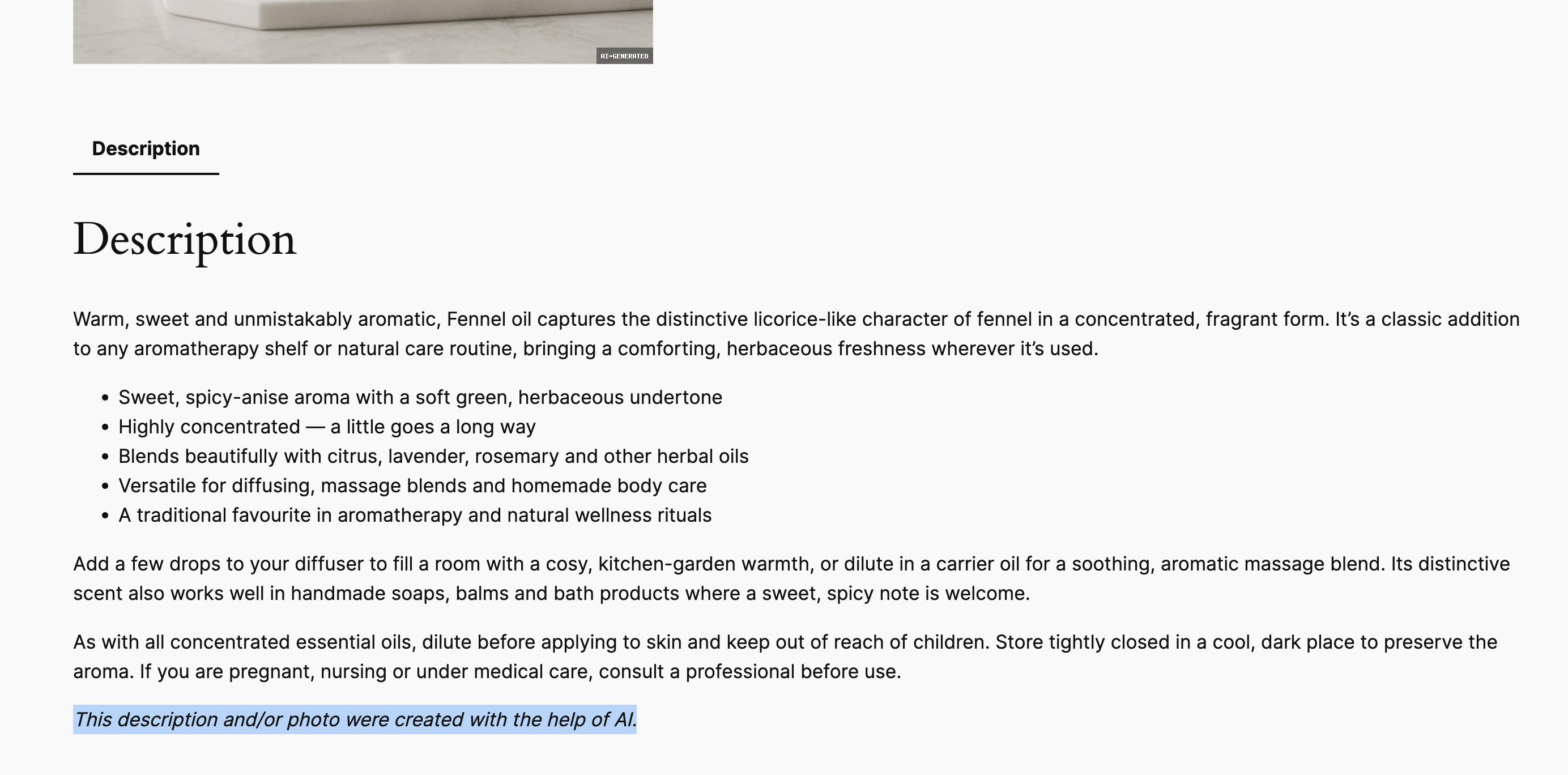
Turn this on under Settings to show a short "created with the help of AI" note beneath the description and short description on the frontend of any product this plugin applied content to, and to stamp a small "AI-GENERATED" label into the corner of any image applied afterward. Turning it off removes the frontend note immediately; it does not remove the label already baked into images already applied.
Troubleshooting
- "No text/image provider selected" — go to WooCommerce > Settings > AI Content Generator > AI providers and pick one. If the dropdown is empty, no connected provider currently supports that capability — connect one under Settings > Connectors first.
- A generation failure with any other message — that message comes directly from WordPress's AI Client or the Connector plugin, not this plugin. Turn on Debug mode and check WooCommerce > Status > Logs (source:
digitalcraft-content-generator-pro) for the prompt that was sent, then check the Connector plugin's own settings/API key. If you have the official "AI" plugin active, Tools > AI Request Logs shows the full request/response for every AI Client call site-wide, which is usually more useful than this plugin's own log. - Generation is slow or times out — image generation can take a while, especially when requesting more than one option. Try lowering "Number of image options", or simply try again.
- Bulk-fill results — check WooCommerce > Status > Logs (source:
digitalcraft-content-generator-pro-bulk) for what happened to each product in a batch, including any that failed. - Settings not saving — the Settings page requires the "manage_woocommerce" capability (Shop Manager or Administrator). A user without it can't see or save this page.